
Multi-channel DCP audio from a Windows PC: ASIO, Windows audio and HDMI
How to get every channel of a DCP’s sound from NeoDCP Player to a cinema processor, mixer, amplifier or AV receiver: through an ASIO audio interface, or through Windows audio and HDMI with the picture.
Two ways to the sound system
A DCP carries its sound as separate channels. NeoDCP Player plays multi-channel DCP audio through Windows audio or, since version 5.20, through ASIO-compatible audio devices. DCP inspect (File › Inspect DCP…) shows the audio channel format of each DCP.
| ASIO | Windows audio | |
|---|---|---|
| Device | An audio interface with an ASIO driver, or Dante Virtual Soundcard | The HDMI output of the graphics card, or another Windows sound device |
| Goes to | A cinema processor, mixer or amplifier, each channel on its own output | An AV receiver or processor with an HDMI input, up to 8 channels with the picture |
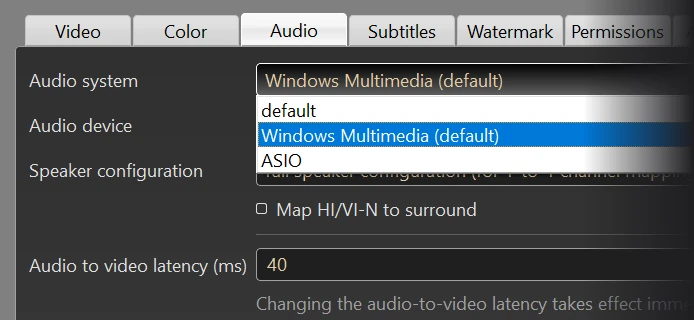
| Setting | Audio system: ASIO | Audio system: Windows Multimedia |
Both are set in Menu › Settings › Audio Settings, where you also choose the output device and the audio-to-video latency.
1. ASIO audio interface
- Install the ASIO driver of your audio interface and connect its outputs to the cinema processor, mixer or amplifier.
- In NeoDCP Player, open Menu › Settings › Audio Settings, set Audio system to ASIO and choose your device.
- Play a DCP. Its channels go to separate outputs of the interface.
Dante Virtual Soundcard also works as an ASIO device, so DCP audio can go to a Dante network the same way. Before the first screening, check which output carries which channel (see the checklist below).
2. Windows audio and HDMI
With Windows audio, NeoDCP Player plays through a Windows sound device. Since version 5.20 you choose the device in Menu › Settings › Audio Settings, so it no longer has to be the Windows default device.
Over the graphics card’s HDMI output, up to 8 audio channels travel with the picture to an AV receiver or processor with an HDMI input. Choose the HDMI device of the graphics card as the output device.
Switch off the Windows audio enhancements for the selected device, so the channels pass through unchanged.
Lip sync
If a DCP’s sound needs to be shifted against the picture, set the audio-to-video latency in Menu › Settings › Audio Settings, in milliseconds: negative values delay the sound, positive values delay the picture. The change takes effect immediately.
Projectors and AV receivers add their own processing delay, so set the latency once for the room, with the projector and sound system you screen with.
Check before the show
- Channels: a channel identification test plays every channel from the right speaker.
- Level: the playback level is right for the room.
- Lip sync: dialogue and picture match with the projector you screen with.
- Reels: the sound continues across every reel change.
- ASIO: the driver is installed and the device is selected in the audio settings.
- Windows audio: the right output device is selected and its audio enhancements are off.
Common questions
Can the picture go over HDMI and the sound to a separate audio interface?
Yes. The picture goes from the graphics card to the projector or display, and with ASIO the sound goes to your audio interface, each channel on its own output.
Which ASIO devices work?
NeoDCP Player plays through ASIO-compatible audio devices: audio interfaces with an ASIO driver, and Dante Virtual Soundcard. Test your device with the 14-day trial before you order. In the trial, the sound plays for about a minute per DCP before it is muted.
What about Dolby Atmos DCPs?
The FAQ answers it: Does NeoDCP Player support Dolby Atmos?
Next steps
Try your sound setup on your own PC with your own DCPs before you order.
More step-by-step help is in the NeoDCP Player guides, for example Set up a Windows PC for DCP screenings. The features page describes the audio output, and the FAQ answers common questions.