
DCP subtitles on a Windows PC: Interop, SMPTE, Japanese and Chinese
How NeoDCP Player renders the subtitles and captions of a DCP, how to check them before a screening, and how to move them or change their color for your room.
Interop and SMPTE subtitles
A DCP carries its subtitles in a track of their own. Interop DCPs use the CineCanvas format, and SMPTE DCPs use the SMPTE subtitle format. Both can hold text subtitles, which the player draws with the fonts and styles in the package, or subtitles as PNG images. The subtitle file is an XML file, or it is wrapped in an MXF file.
Because the player draws text subtitles itself, the fonts in the package matter. If the subtitle file refers to a font or style that the DCP does not define, NeoDCP Player uses its default font (see Messages you may see).
What NeoDCP Player renders
NeoDCP Player renders Interop (CineCanvas) and SMPTE subtitles and captions directly from the DCP, including:
- text subtitles with their fonts, outlines or shadows, transparency and fades, and subtitles as PNG images;
- subtitle files in MXF or XML format;
- open and closed captions, and closed subtitles;
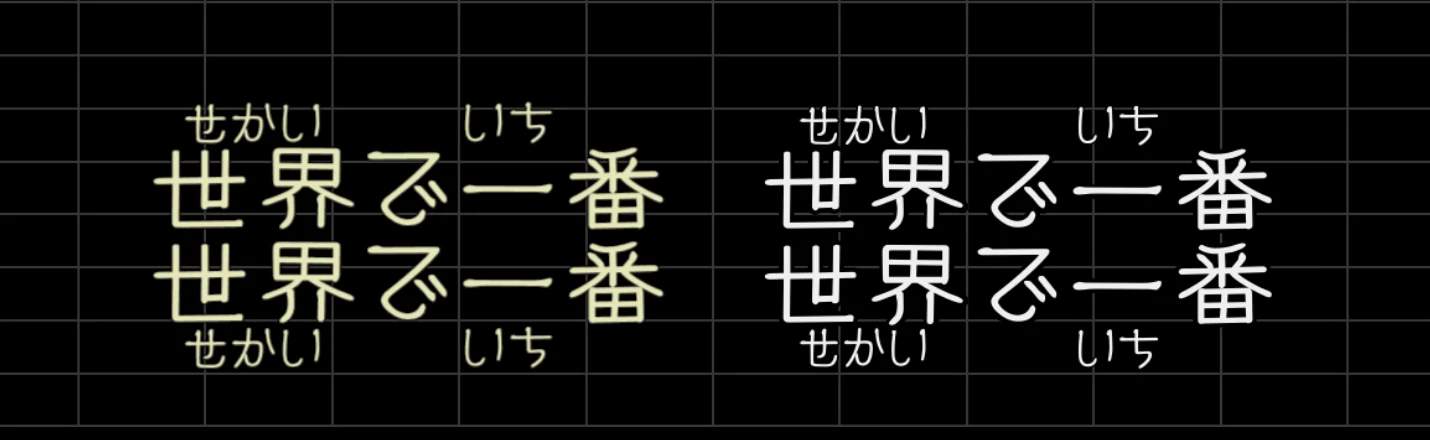
- Japanese and Chinese subtitles, including ruby (furigana) and vertical text, in a single DCP and in Supplemental DCPs (OV + VF), since version 5.18;
- stereoscopic (3D) subtitles;
- encrypted subtitle tracks, which play together with encrypted DCPs (Cinema and Cinema PT licenses).
Subtitle rendering is part of every license, from Starter to Cinema PT.
Choose the track
In the subtitle settings you set which type of subtitle or caption track is loaded first, and your preferred subtitle languages. When you open a DCP, the Subtitles tab shows which track will play. For each CPL you can choose another track yourself, or switch subtitles off.
DCP inspect (File › Inspect DCP…) lists the languages of the subtitle tracks in the package.
Check before the screening
Play the subtitled parts of the program on the screening PC and projector, from a seat in the back rows.
- Language: the right track plays, and DCP inspect lists the subtitle languages you expect.
- Timing: subtitles appear and disappear with the dialogue, also across reel changes.
- Position: the lines are readable from the back rows. In rooms without raked seating, move them up.
- Characters: Japanese and Chinese text, ruby and vertical lines look as intended.
- Fonts: no message about a missing character style.
- 3D: the subtitles of a stereoscopic DCP look right in full-screen 3D.
- Encrypted titles: the subtitles play together with the picture once the KDM is ingested.
Adjust position, color and effects
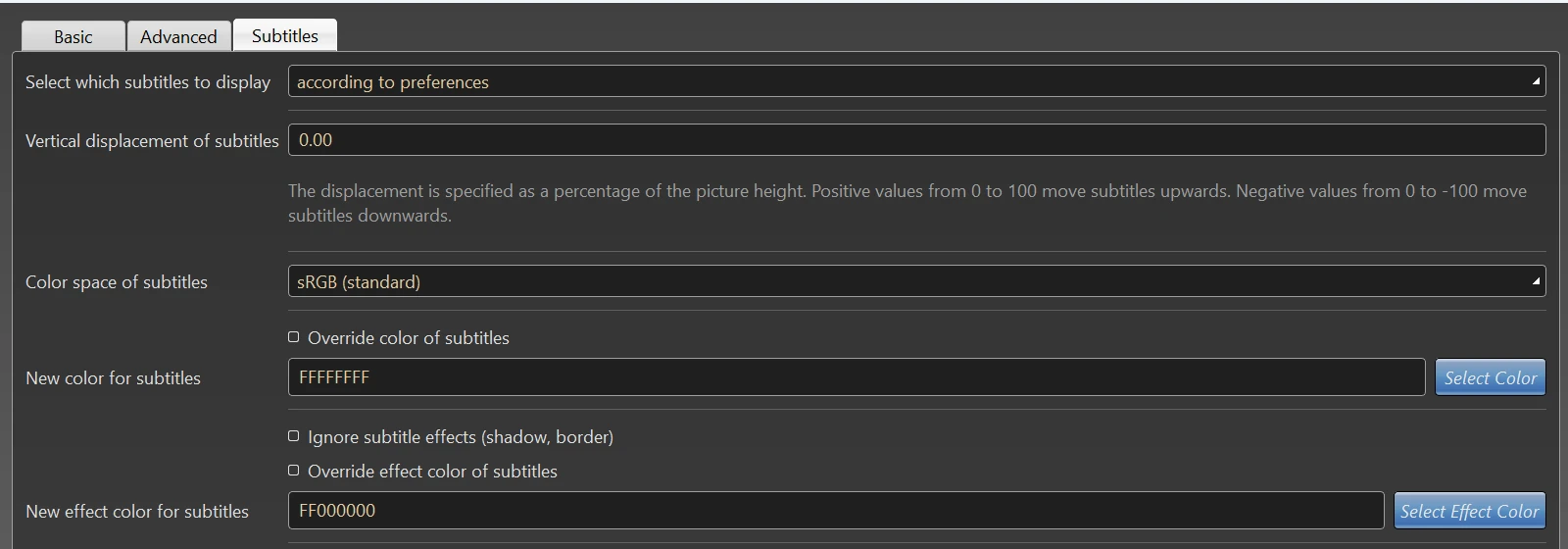
Subtitles and closed captions can be moved up or down and their colors overridden. This helps in rooms without raked seating or with unusual screen geometry. Set it when you open a CPL, or per CPL in the playlist editor:
- vertical displacement, in percent of the picture height;
- a new color for the subtitles, and a new color for their effect (outline or shadow);
- subtitle color space, for example to see how the subtitles look on servers that assume a different color space;
- Ignore Subtitle Effects, available when you add a CPL (since version 5.19, off by default).
A playlist with adjusted subtitles
- Open File › Playlist Editor… and enter a name for the playlist.
- Click Add and choose Add CPL from DCP… or Add CPL from DCP libraries…, then select the DCP and the composition (CPL).
- On the Subtitles page, enter the vertical displacement and/or choose a new subtitle color, then click OK.
- Add more CPLs the same way, then save the playlist (.NEP) and open it from File › Open playlist.
Messages you may see
Encountered missing character style
The subtitle file refers to a font or character style that the DCP does not define. NeoDCP Player then renders the subtitles with its default font. If the subtitles look different from what you expect, send the subtitle XML (and the font file, if the package contains one) to [email protected].
Common questions
Why can the same subtitles look different on different players?
Each player draws text subtitles itself, from the subtitle file and the fonts in the package. A missing font or an unusual style can therefore look different from player to player. The subtitle color space setting shows how the subtitles look on servers that assume a different color space.
Can I play a subtitle file without its DCP?
Yes. In File › Open Audio/Video MXF…, select a picture MXF, a sound MXF and a subtitle file (MXF or XML), in any combination, and click Open.
Can I check subtitles in the trial?
The 14-day trial shows placeholder text instead of subtitles and captions. The licensed version renders them.
Which license renders subtitles?
All of them. Encrypted subtitle tracks play together with encrypted DCPs, with Cinema and Cinema PT.
Next steps
Subtitle rendering is part of every NeoDCP Player license. Compare the licenses to find the one for your work.
More step-by-step help is in the NeoDCP Player guides, for example DCP quality control on a Windows PC: a checklist. The features page describes subtitle rendering, and the FAQ answers common questions.