
Set up a Windows PC for DCP screenings
How to prepare a Windows PC with NeoDCP Player for screenings: the displays and content protection, the sound, the DCP drives, the keys for encrypted DCPs, the program and the check before the audience arrives.
What you are building
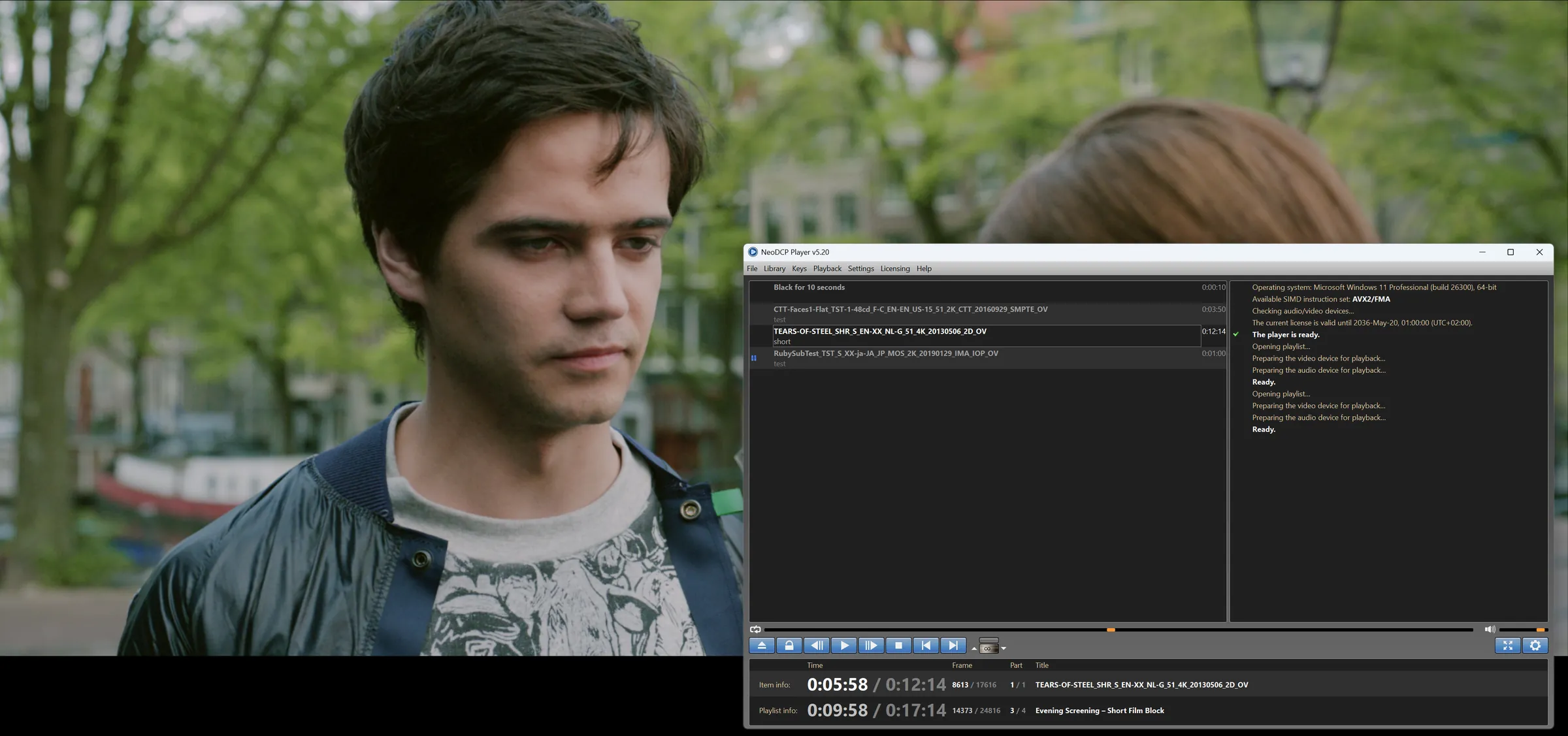
A screening PC with NeoDCP Player is one Windows PC with two displays. The controller window stays on your monitor, and the picture plays full screen on the projector, LED wall or TV, with no controls over it.
The player handles SMPTE and Interop DCPs in 2K and 4K, 2D and stereoscopic 3D, encrypted DCPs with KDMs issued to the player’s certificate, Supplemental DCPs, playlists with pauses and intermissions, and digital masking.
Screenings for an audience need a Cinema or Cinema PT license. Starter, Studio and Studio PT are for private display only, for example checking DCPs in post-production. Compare the licenses.
1. Choose the PC
The processor matters most. NeoDCP Player decodes JPEG 2000 in software, so the CPU decides what plays in real time.
| Playback | Processor |
|---|---|
| 2K DCPs | At least 4 cores, such as an Intel Core i5, i7 or i9 |
| Stereoscopic 2K DCPs (48 fps) | A fast multi-core processor, for example a quad-core with at least 3.5 GHz |
| 4K DCPs in full resolution | 12 or more cores, for example an AMD Ryzen 9 |
The PC also needs at least 16 GB of memory and 64-bit Windows 10 or 11. Use a physical PC, because virtual machines are not supported, and plan enough fast storage for every DCP of the program. All details are in the system requirements.
Graphics card and connection
- A graphics card with HDMI or DisplayPort output and a current driver. A current NVIDIA or AMD card works well, and integrated graphics also work.
- For encrypted DCPs, every part of the chain must support content protection: the graphics card, the cable or extender, and the projector or display, with HDCP over HDMI or DPCP over DisplayPort. NeoDCP Player plays encrypted content only over a protected connection.
- For 3D: an HDMI 1.4 or DisplayPort 1.2 connection to a 3D-capable projector or display.
- For 30-bit deep color: a graphics card, driver and display with 10-bit output.
If the projector is far from the PC, use HDMI with HDCP over an HDBaseT extender (HDCP 2.2). Unencrypted DCPs can also go to SDI equipment through an HDMI-to-SDI converter on the HDMI output.
Before you order a license, install the free 14-day trial on this PC and play your own DCPs with it. In the trial, 4K DCPs play at a lower resolution.
2. Connect the displays
- Connect the operator monitor and the projector or screen to the graphics card.
- In the Windows display settings, choose Extend these displays and make the operator monitor your main display.
- In NeoDCP Player, open Menu › Settings › Video settings. Every output is listed with its ID and name, so you can pick the projector. Choose its full-screen resolution, refresh rate and color depth, for example 24 Hz for 24 fps DCPs.
- Tick Enable vertical sync for smooth playback without tearing.
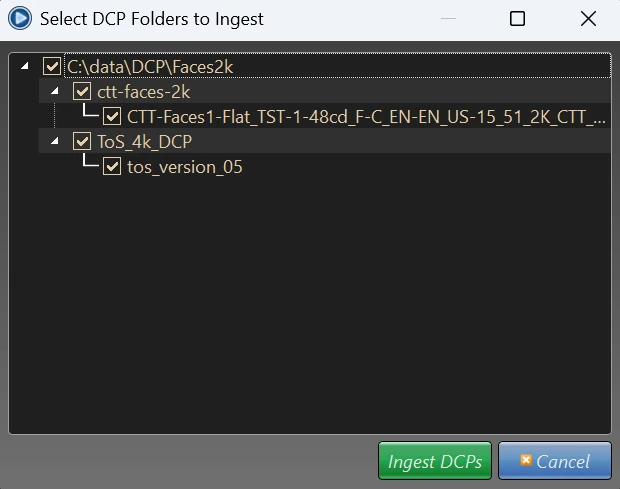
- Set the digital mask for your screen: Flat (1.85:1), Scope (2.39:1), 2.35:1 or HDTV (16:9). During playback, Alt+M shows the masked areas in blue, and pressing it again hides them.
- If you like, let playback open in full-screen mode, hide the mouse cursor in full-screen mode and show a black screen while playback is paused.
For 3D, play in full-screen mode. The player outputs frame-packed 3D when the graphics card and the display support it, and side-by-side 3D otherwise; the 3D signal is detected automatically.
If the controller window ends up on the projector, Ctrl+Alt+S moves it to the other monitor. Alt+F switches between full-screen and windowed playback.
3. Route the sound
Choose one of two ways to get the DCP’s audio channels to the sound system.
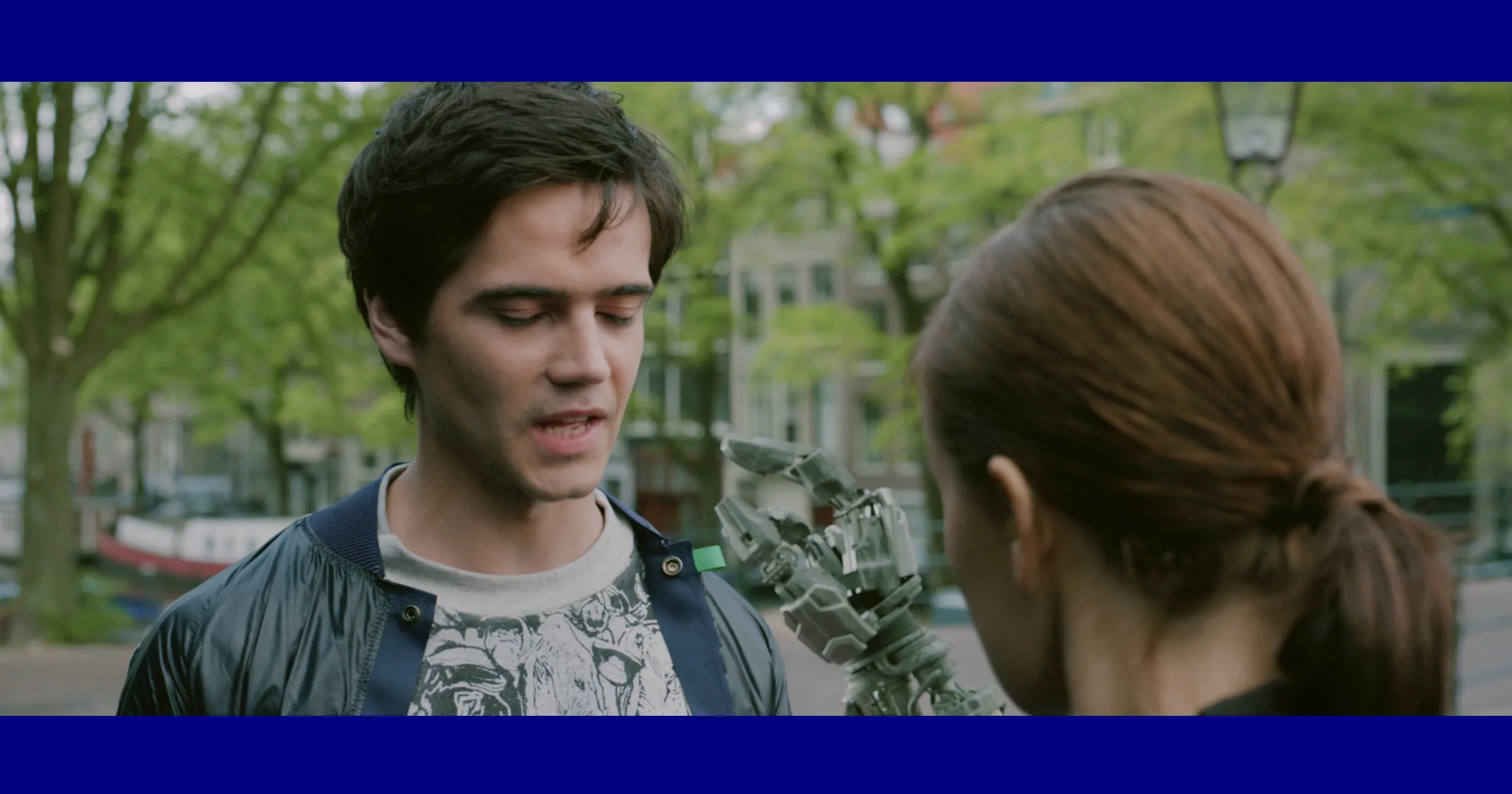
- ASIO audio interface (since version 5.20). In Menu › Settings › Audio Settings, set the audio system to ASIO and choose your device. The DCP’s channels go to separate outputs, for example to a cinema processor, a mixer or an amplifier.
- HDMI. The graphics card’s HDMI output carries up to 8 audio channels with the picture to an AV receiver or processor. With Windows audio, select the output device in the same settings, and switch off the Windows audio enhancements for that device so the channels pass through unchanged.
DCP inspect (File › Inspect DCP…) shows the audio channel format of each DCP. If the sound needs to move against the picture, set the audio-to-video latency in the audio settings, in milliseconds: negative values delay the sound, positive values delay the picture. Step by step: Multi-channel DCP audio from a Windows PC: ASIO, Windows audio and HDMI.
4. Copy the DCPs to the PC
DCPs usually arrive on a hard drive in a CRU DX115 carrier, which needs a CRU dock or reader, or on a USB drive. Many delivery drives use the Linux file systems ext2 or ext3, so install a Linux file system driver for Windows first (how to read a delivery drive). If Windows offers to format the drive, choose Cancel, because formatting erases the DCP.
- Create a DCP library on a fast drive in Library › Manage DCP Libraries…. The library manager shows the free space and the number of DCPs in each library.
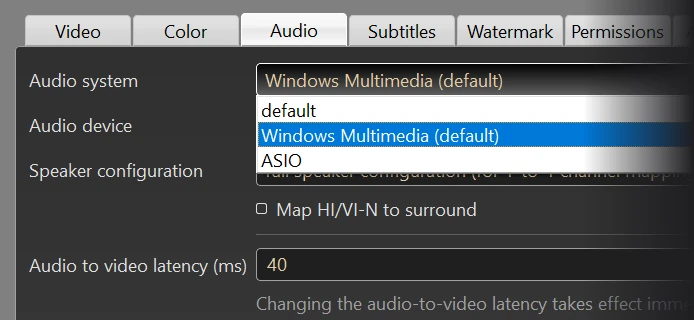
- Open Library › Ingest DCPs…. It lists every DCP on the delivery drive; tick the ones you need. The player copies them into the library and checks their hashes at the same time. If a file is damaged, the ingest stops.
- For a Supplemental DCP (VF), ingest the original version (OV) first, then the VF.
DCP ingest with verification is part of the Cinema and Cinema PT licenses. DCPs that are already on the playback disk can be registered instead of copied. To check a DCP without adding it to a library, use File › Verify DCP Hashes….
5. Keys for encrypted DCPs
Encrypted DCPs play with a KDM issued to your player’s certificate. You need a Cinema or Cinema PT license and a protected connection to the projector (HDCP or DPCP).
- Send the certificate chain from your license email (the .chain.sha256.pem file) to the distributor, lab or festival that provides the DCP. Each installation has its own certificate.
- They create a KDM for your certificate and your screening dates.
- Ingest the KDM with the Ingest KDM button in the controller window. It stays in the player’s encrypted KDM database, so you don’t need to load it again.
- Check the validity period in the KDM browser. It shows every key in local time and in UTC, and marks keys that expire soon or are not valid yet.
Ask for KDMs well before the screening. After a Windows reinstall or a license transfer, send the player’s new certificate to your content providers. Step by step: Encrypted DCPs and KDMs on a Windows PC. More in the FAQ: How do KDMs work with NeoDCP Player?
6. Build the program
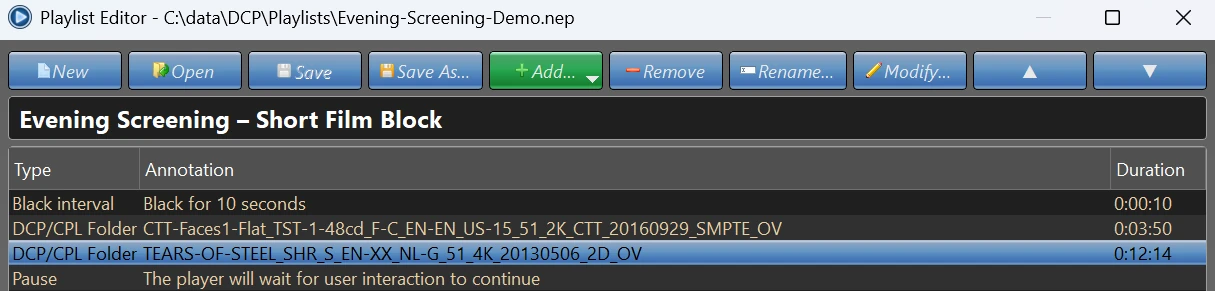
Put the screening together in the playlist editor (File › Playlist Editor…). A playlist can hold CPLs from DCPs or from your DCP libraries, MXF files, black intervals and pauses that wait for the operator.
- For each CPL, choose the subtitle or caption track, the subtitle position and colors, and the range of frames to play.
- Correct the brightness per item, for example to match 2D and 3D titles in one show.
- For an intermission in a feature, add the same CPL twice with a pause between them, and set the frame range of each part in the advanced options.
- Turn on Loop for trailers in the foyer: the playlist repeats without a gap until you stop it.
Save the playlist (.NEP) and open it from File › Open playlist. Playlists are available with Studio, Studio PT, Cinema and Cinema PT.
7. Check before the show
Play the whole program once in the empty room, with the projector, the sound system and the settings you will use for the audience.
- Picture: the right output, full screen, the mask that matches the screen (Alt+M), and 3D if you show it.
- Sound: every channel from the right speaker, the level, and lip sync.
- Subtitles: the right track, readable from the back rows. In rooms without raked seating, move them up.
- Reels: playback runs over every reel change without a gap.
- Keys: a valid KDM for every screening date and time, in local time.
- Program: the order of the playlist, the pauses and the intermission.
- Operator: the settings and the player protected with a password, and the operator permissions set.
- Updates: on a PC that must not change during the festival, switch off the automatic update check and update afterwards from the download page.
- Windows: sleep and the screen saver off, and no restarts for updates on screening days.
Common questions
Can one PC check submissions and screen the festival?
Yes. It is the same player. Screenings for an audience need a Cinema or Cinema PT license.
Is NeoDCP Player DCI compliant?
NeoDCP Player is a Windows-based player for checking and screening DCPs. It is not a DCI-compliant media block; DCI compliance applies to certified cinema server hardware. The player sends the picture to projectors and displays over HDMI or DisplayPort, and for encrypted DCPs that connection must support HDCP or DPCP. More in the FAQ: Is NeoDCP Player DCI compliant?
The projector is far from the booth. What do I use?
HDMI with HDCP over an HDBaseT extender (HDCP 2.2). The connection stays protected, so encrypted DCPs play too.
Can I use a laptop?
Yes, if its processor is fast enough for your DCPs (see the table in step 1) and, for encrypted DCPs, its HDMI or DisplayPort output supports HDCP or DPCP. Test it with the 14-day trial first.
Does a backup PC need its own license?
Yes. Each license is issued for one PC, so every PC that plays DCPs needs its own license. For several PCs, ask [email protected] for a quote.
Next steps
Try the whole setup on your own PC with your own DCPs before you order.
Questions about your setup? Ask the developer.
More step-by-step help is in the NeoDCP Player guides. The features page shows where each setting is in the menu, and the FAQ answers common questions.